Getting Started on OBS
When you open OBS, or Open Broadcaster Software, for the first time, you're greeted with a blank screen and some buttons. It's kind of scary but we'll get you to streaming statu...
When you open OBS, or
Open Broadcaster Software
, for the first time, you're greeted with a blank screen and some buttons. It's kind of scary but we'll get you to streaming status in no time. We'll go through some of the menus to help get you started. Not necessarily everything, but enough for you to have a video going to the internet. [Unsupported shortcode: embedyt]
OBS Stream Settings#
The first thing you'll need to do is go into
File -> Settings
so we can do some light tinkering. I'm assuming you can pick the right language for you and, oh yeah, there's a dark mode. People like that, right?

After that, we're going to go into the
Stream
tab of the menu. Regardless of the place you stream to, the steps are pretty much the same. Pick the closest server to you and enter in your stream key and you'll be good to go. Your stream key is usually somewhere on your broadcaster dashboard.

From there, you've got to head over to the
Output
tab and set your
bitrate
. There's a much more thorough
but I'm going to guess you'll want to set your video bitrate to something between
1500 and 2000
with the
x264 encoder
and
160
for the audio bitrate. Again, these are fast and easy settings; you'll want to tinker with this the most. The recording stuff at the bottom is something you can worry about if you think you want to save your stream. If you aren't interested, don't worry about it. If you do, you probably want something that isn't an FLV file because what uses that?

Lastly, check if your
audio
and
video
look correct. For audio, the main thing you'll have to look out for is if your microphone is correctly assigned. If you have extra gear, OBS has extra slots for it, potentially, and check that the system sound is assigned correctly.

Then for
video
, this should be fairly straight-forward. In terms of first-time streams, the easiest way to set your settings is to set your base resolution at your monitor resolution, 1920 x 1080 in my case, then set your output resolution to 1280 x 720. You
could
set your base resolution to 1280 x 720 so it's more consistent throughout and it's apparently more efficient but there could be reasons not to do that. Again, for your first-time stream, keep your base resolution at your monitor resolution or as close as possible. Then set your FPS to 30 because as we probably mentioned here somewhere before, streaming 60 FPS is hard on multiple levels. So, there's more options and you could mess with them but all this should be enough to get you started if you want to start streaming right this second.
Creating Scenes#
Next, we'll walk you through the actual scene editor. This is where you're actually going to see your broadcast come together. There are a ton of different options here and different ways to do things but here's how we're gonna get your stream started. The
Scenes
menu is the collection of scenes that make up your whole broadcast. The
Sources
are the elements that make up
each scene
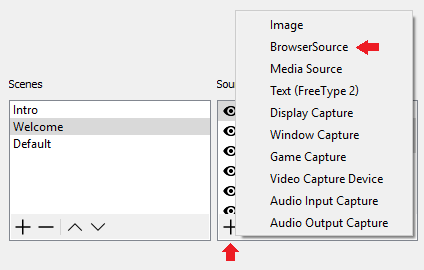
. This is where your game, monitor, etc. will go. In fact, you can add one now. At the bottom of the sources window is a "+" and in that menu will be
Display Capture
.

Once you add it to the scene, it might not be sized correctly and even if it is, a good, easy way to make something like this fit is to right click it then go to
Transform > Fit to screen
which will automatically size up anything to fit to your broadcast screen. If you're so inclined, you can also add in a webcam. Another option in that "+" menu is
Video Capture Devices
and that is where you'll add in your webcam. You'll have to select your device and set some options for it. Not every webcam will be the same here but I believe in you. In place of my webcam, I'll add this picture of Laina.

Once you add your camera in, now is when you'll probably take notice of the red lines and circles around your webcam in the OBS preview. You can use the circles to resize the camera as you like and move it about the screen. Sources in OBS will conveniently snap to important things like the edge of the canvas or another source. You can disable or adjust snapping in
Settings -> General
. Now, we'll just need an intermission screen. If you use the "+" button on the
Scenes
area instead, it'll add a brand new scene we can use for an intermission screen. We don't have real graphics right now so we're just going to use our favorite gif. Mine is this gif of R2D2.

From here, you have the tools to really do what you want. Adding anything else is pretty much the same as adding what's already there with different degrees of toggling on a check box here or a drop down menu there. I would highly encourage that you play around with the tools available to you in OBS regardless of how much you want to stream because you're probably more technically savvy than your average person whether you think that or not. If for one reason or another, you think you might like streaming but you might not like OBS in particular, you have the knowledge that other programs are very similar to OBS not only in features but usability so much like how one car you might drive has more bells and whistles than another, but require the same fundamental skill set to operate.
Go further
Want a second set of eyes on your stream?
Our consultants have grown channels from a handful of viewers to Partner. Book a 1-on-1 session and get advice specific to your content, your numbers, and your goals.
Meet the consultants